
Zoom Workplace for Intune
zoom.comBusiness
3.7621.00 Reviews
- Version
- 7.0.5.40165
- Installs
- 10.00M
- Age Rating
- Everyone
Screenshots


Our Review of Zoom Workplace for Intune
 Analysis by Appyee
I approached Zoom Workplace for Intune as a practical business app rather than just another video-call shortcut. Its purpose is broader than joining meetings: it brings workplace collaboration into one mobile experience, with an AI-powered collaboration focus and an edition intended for organizations managing devices through Intune. After spending time with the app, my impression is that it makes the most sense for people who already work in a Zoom-centered company and need a dependable way to stay involved away from a desk.
The app is free, aimed at everyone from a content-rating perspective, and comes from zoom.com. It has passed the point where I would treat it as an untested newcomer: the Android listing shows over ten million installs, an average rating of 3.7, and roughly thirty thousand ratings. Those figures suggest a widely used product with a mixed but credible user experience. My own view is similarly balanced. It is capable and familiar, but the quality of the experience depends heavily on the phone, network, meeting load, and the way an organization has configured access.
How Zoom Workplace for Intune feels in everyday work
I find the everyday appeal of Zoom Workplace for Intune is less about adding another way to make a call and more about keeping work conversations within reach while I move between tasks. In this section, I’ll focus on how that mobile convenience feels in practice, then turn to the more important question of whether the access it provides is worth choosing over a simpler option.
The first impression: quick access, but not a lightweight tool
On a modern Android phone, the main tasks feel straightforward. I can think of the app as a mobile work hub: open it when I need to join a meeting, check a conversation, respond to a workplace message, or move from one collaboration task to another. That convenience is its strongest argument. I do not have to treat every work interaction as a separate app switch, which matters when a meeting invitation arrives while I am already handling messages or documents.
That convenience does not mean the app is as light as a simple dial-in client. A workplace platform has more to organize than a basic video-calling app, and the interface can feel busier as a result. New users may need a little time to understand where a meeting action ends and the broader collaboration workspace begins. My advice is to spend a few minutes exploring the navigation before an important call, especially if the organization has enabled several work areas or account options.
The Intune connection is important for the intended audience. This is not merely a consumer app that happens to be installed on a work phone. It belongs in an environment where the employer manages mobile access and expects business communication to follow company rules. That can be reassuring for an organization, while an individual user may find the sign-in process or available functions more dependent on workplace administration than with a personal meeting app.
Perceived speed during normal use
For ordinary actions, I judge the app by how little it interrupts my routine. Opening a meeting, moving through a conversation, and switching between collaboration areas should feel immediate enough that I am not thinking about the software. In practice, the experience is most comfortable when the phone is reasonably current and the connection is steady. The app is designed for active communication, so delays become more noticeable when audio, video, messages, and meeting controls compete for attention.
I would not choose it because I expect every screen to behave like a stripped-down utility. It is a fuller business platform, and that brings more interface work than a single-purpose video app. The useful distinction is this: the extra structure is worthwhile when I need several workplace functions in one place, but it is unnecessary overhead if all I want is to tap a link and watch a presentation.
One practical habit improves the perceived speed: I prepare the meeting before I am in a hurry. I open the app, check that I am in the correct work account, and close unrelated phone activity. This is not a magic performance fix, but it reduces the chance that I will be searching through the interface while other people are already waiting. For a commuter joining from a phone, that small amount of preparation is more valuable than expecting the app to solve every last-minute problem.
What happens when usage becomes demanding
The demanding moments are predictable. A long meeting, active camera use, frequent switching between meeting controls and messages, or participation from a weak mobile connection puts more pressure on the device and the user. I pay particular attention to heat, battery drain, and whether the phone remains responsive when the session becomes more than a short check-in. Those are the situations where a broad collaboration app can feel much heavier than its store summary suggests.
I would use a stable Wi-Fi connection for a long meeting whenever possible, especially if I need video rather than audio alone. Mobile data can be convenient, but a changing signal creates a poor experience even when the app itself is working correctly. If I am traveling, I prefer to join with the camera off until I know the connection can handle the session. That choice also reduces the pressure on an older phone and gives me a better chance of staying engaged instead of troubleshooting.
Another useful workflow is to separate “listen and respond” meetings from “actively collaborate” meetings. For a short status update, the phone is perfectly sensible. For a session where I need to read several items, type detailed replies, and keep multiple work threads visible, a larger screen is usually better. The app can support mobile participation, but it cannot turn a small display into a desktop workspace. That is a limitation of the form factor rather than a flaw unique to Zoom Workplace.
When a phone starts to feel warm or sluggish, I do not keep opening additional areas just to test the limits. I finish the essential task, leave the meeting cleanly, and allow the device to settle. Keeping the app updated is also sensible; the current Android version is 7.0.5.40165, so users should check that their installation is not far behind before blaming the app for behavior caused by an old build.
Stability and recovering from interruptions
Reliability on mobile is not only about whether a meeting starts. It is also about what happens after a notification, a brief network change, a locked screen, or an accidental exit. In my experience, the most reliable approach is to treat recovery as part of the workflow. I keep the meeting invitation or relevant conversation easy to find, and I avoid assuming that a phone will preserve every step exactly as I left it after a long interruption.
If audio or video drops, I first check the connection and the phone’s current state rather than immediately reinstalling the app. Moving closer to a stronger Wi-Fi signal, turning off unnecessary video, or rejoining through the original meeting entry point can be more practical than making several changes at once. This matters because recovery is easier when I know whether the problem came from the network, the device, the account, or the meeting itself.
The app is a good fit for people who need to return to work quickly after an interruption, but I would still keep a backup plan for important meetings. That might mean knowing where the meeting invitation is stored or having access to the same work account on another approved device. I do not see that as a criticism of this particular app. Mobile work is exposed to signal changes, calls, battery limits, and operating-system interruptions that no collaboration platform can completely remove.
For a short conversation, a brief interruption is usually manageable. For a long meeting where I am expected to present or lead, I prefer a computer whenever one is available. The larger device gives me more control and makes recovery less stressful. The phone remains useful as a fallback, but I would not make it my only plan for a high-consequence presentation.
Device limits and the Intune context
The minimum operating-system requirement is Android 9, which keeps the app available to many devices but does not guarantee a smooth experience on every phone that can install it. Operating-system compatibility is only the first filter. Hardware age, available storage, battery condition, screen size, and background workload all shape how comfortable the app feels. Two phones that meet the same minimum requirement can still behave very differently during a busy meeting.
On a newer device, the broad feature set is easier to justify because switching between work activities feels less restrictive. On an older or entry-level phone, I would be more selective. Audio participation and short messages are realistic uses, while extended camera meetings and constant multitasking may be frustrating. If the phone is already slow in other business apps, this is not the place where I would expect a dramatic improvement.
Intune-managed use adds another practical consideration: the organization may control how the app can be used on a work device or inside a work account. That is valuable for businesses that need a consistent mobile environment, but it can feel less flexible than a personal Zoom installation. Before relying on the app for urgent work, I would confirm that the company account is active, the device is enrolled as required, and the intended meeting functions are available under the organization’s setup.
That check answers an important question for many users: can I simply install it and use it like a private communication app? Sometimes the answer will be no in practical terms, because the app’s value is tied to the managed workplace around it. If you are joining a friend’s casual call or looking for a minimal personal messenger, a simpler alternative may suit you better. If your employer already uses Zoom and manages Android access, the Intune-oriented approach is much more relevant.
A realistic day-to-day scenario
Imagine I am leaving the office when a colleague sends a message asking me to join a short discussion. I open the app, enter the work account, and join from my phone rather than waiting until I reach a laptop. I keep the camera off while walking, use headphones when possible, and focus on the conversation instead of attempting to edit documents at the same time. Once the call ends, I return to the relevant workplace thread and leave a concise follow-up.
That scenario shows where the app earns its place. It removes the gap between “I am away from my desk” and “I am unavailable.” It is especially useful for managers, field workers, hybrid teams, and anyone who moves between rooms or locations during the day. The trade-off is that mobile participation works best when the task is clearly defined. If the discussion expands into detailed review or several parallel decisions, I would move to a computer rather than forcing the phone to carry the whole workload.
How it compares with simpler alternatives
Compared with a basic video-meeting app, Zoom Workplace for Intune feels more appropriate for an organization that wants meetings and collaboration in the same business environment. The advantage is continuity: I can stay connected to workplace activity instead of using one app for calls and another for every follow-up. The cost of that breadth is a fuller interface and a greater dependence on account configuration.
Compared with a standard desktop Zoom experience, the mobile version is more convenient but less spacious. I can respond while away from a desk, yet I sacrifice screen room and some comfort during long sessions. Compared with a simple team chat app, it is more convincing when live meetings are central to the workday. If a team mainly exchanges short text messages and rarely meets, a lighter chat-focused tool may be easier for everyone.
The best choice therefore depends less on the app’s popularity and more on the work pattern. I would recommend it when the organization already relies on Zoom, wants managed mobile access, and expects employees to move between meetings and collaboration tasks. I would skip it for a person who needs only occasional personal calls, dislikes managed work profiles, or uses an older phone that already struggles with demanding communication apps.
What I would change in my own setup
I would begin with a small, repeatable routine: verify the correct account, test audio before an important call, keep the phone charged, and use a reliable network for longer sessions. I would also decide in advance whether a meeting is suitable for mobile participation. This prevents the common mistake of joining from a phone and then discovering that the task requires more screen space than expected.
For heavy use, I would avoid stacking unrelated apps in the background and would keep a second approved way to access the meeting details. I would not interpret every delay as an app failure; network quality and device condition are equally important. When something goes wrong, I would change one variable at a time—connection, camera use, or rejoining—so recovery remains understandable.
These habits are particularly useful because the app sits between personal convenience and workplace control. The experience is not only about tapping a meeting button. It is about making sure the phone, account, network, and organizational setup are all ready to cooperate. Once that foundation is in place, the mobile workflow becomes much less stressful.
My performance verdict
My final impression is that Zoom Workplace for Intune is a capable business app whose performance is best judged by context. It is fast enough for everyday mobile collaboration on a suitable device, but it is not a lightweight tool designed to disappear into the background. Heavy meetings can expose the usual limits of phone hardware, battery, screen size, and connection quality, while managed access can add steps that personal users may not expect.
The 3.7 average from around thirty thousand ratings feels consistent with that mixed picture: the app can be genuinely useful, yet not every user will have the same device, account setup, or expectations. Its free price makes trying it straightforward, and its Everyone age classification keeps the audience broad, but the real question is whether your work already lives in Zoom and whether your organization supports the Intune workflow.
My recommendation is clear: choose it for managed, mobile business collaboration, not as a bare-bones calling app. I would gladly keep it on a work phone for joining meetings, handling urgent communication, and staying available while away from my desk. I would rely on a larger device for long presentations, complex multitasking, or anything where recovery must be effortless. Used within its strengths, it is a practical bridge between office work and mobile work; used as a replacement for every desktop task, it becomes far less comfortable.
Zoom Workplace for Intune was released on May 20, 2019, and its continued presence alongside over ten million installs shows why it remains relevant to many teams. For me, the deciding factor is not a promise of perfect speed or unlimited flexibility. It is the combination of familiar meeting access, broader collaboration, and workplace management. If that combination matches your daily routine, Zoom Workplace for Intune is worth installing and learning. If it does not, a simpler meeting or messaging app will probably give you a cleaner experience with less overhead.
Verdict
Strengths of Zoom Workplace for Intune
- Designed for managed enterprise devices and Microsoft Intune policies.
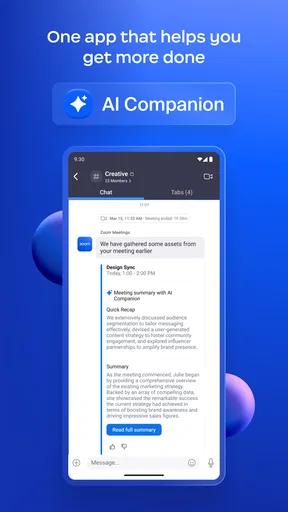
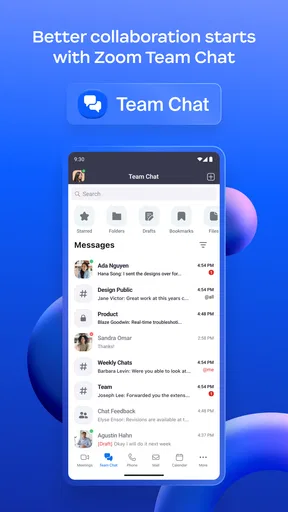
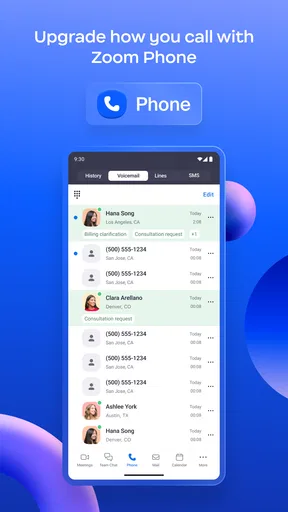
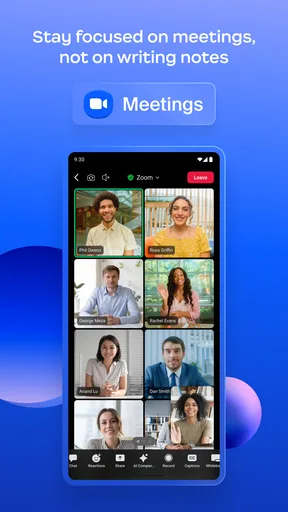
- Supports secure workplace meetings, chat, calls, and collaboration in one app.
- Company data can be separated from personal content on compatible devices.
- Frequent updates add security fixes and improve workplace administration.
- Useful for employees who need Zoom access without unmanaged app installations.
Limitations of Zoom Workplace for Intune
- Requires organizational setup and may not work fully with personal accounts.
- Some features depend on your company’s Zoom license and Intune configuration.
- Device permissions and management controls may feel intrusive to some users.
- Performance can suffer on older phones or weak mobile connections.
- Separate Workplace and standard Zoom apps may cause confusion during installation.
Other Releases by zoom.com
View All
Zoom Workplace
Business4.1

Zoom Workplace for Chromebook
Business3.9
Similar Picks in This Category
View All
LinkedIn: Community & Network
LinkedIn3.8
Zoom Workplace
zoom.com4.1

Microsoft Teams
Microsoft Corporation4.6

Meta Business Suite
Meta Platforms, Inc.4.6

Webex Meetings
Cisco Systems, Inc.4.5

TeamViewer Remote Control
TeamViewer4.4
Frequently Asked Questions
What is Zoom Workplace for Intune, and who is it designed for?
Zoom Workplace for Intune is a version of the Zoom mobile app designed for organizations that manage employee devices and applications through Microsoft Intune. It provides access to Zoom meetings, chat, calling, and collaboration features while allowing company administrators to apply security policies, manage access, and protect business information. It is mainly intended for employees using work-managed Android or iOS devices.
Do I need a company account or Microsoft Intune enrollment to use this app?
In most cases, yes. Zoom Workplace for Intune is intended for users whose organization has deployed Microsoft Intune and configured Zoom for managed access. You may need to sign in with your company Zoom account, Microsoft work account, or single sign-on credentials. Personal Zoom users can generally use the standard Zoom app instead, unless their employer specifically instructs them to install the Intune version.
What features are available in Zoom Workplace for Intune?
The app typically provides core Zoom Workplace tools such as joining and hosting meetings, video and audio calls, team chat, contact management, calendar integration, and collaboration features enabled by your organization. The exact feature set can vary depending on your Zoom license, device type, operating system, and administrator policies. Some options may be restricted to meet company security or compliance requirements.
How does Zoom Workplace for Intune protect company data?
The Intune version allows an organization to apply mobile application management and security controls around Zoom usage. Administrators may restrict copying or sharing business content, require authentication, manage sign-in conditions, and remove work data without deleting personal information. These protections depend on the policies configured by your employer, so the app may behave differently from the regular Zoom application installed on an unmanaged device.
Can I use Zoom Workplace for Intune on a personal phone, and what permissions does it require?
You may be able to install it on a personal Android or iPhone if your organization supports bring-your-own-device access, but enrollment or approval may still be required. The app can request access to your microphone, camera, notifications, contacts, calendar, and local network features depending on the functions you use. Review the permissions and your company’s privacy policy before accepting them, especially when using a personal device.
